MDM set up
Select language
Access to corporate email and EMCD applications is possible from mobile devices running iOS and Android. Access from Huawei devices is not supported.
Important: To access corporate data, you must set a complex PIN (at least 8 digits) on your device.
PIN change
How to Change Your Screen Lock PIN
- Open "Settings." This is usually a gear icon.
- Find the section for "Security," "Security & privacy," "Lock screen and security," or "Passwords & security."
- Select "Screen lock," "Screen lock type," or "Device unlock."
- Enter your current PIN, pattern, or password. This is required to verify your identity.
- Choose "PIN" from the list of available lock types (if you're switching from a pattern or password). If you already have a PIN set, you'll see an option like "Change PIN."
- Enter your new PIN. Make sure it's at least 8 digits long.
- Tap "Next" or "Continue."
- Re-enter your new PIN to confirm.
- Tap "Confirm" or "Done."
How to Change Your Passcode (PIN)
- Open "Settings."
- Scroll down and select "Face ID & Passcode" or "Touch ID & Passcode." On older models without Face ID or Touch ID, this might simply be "Passcode."
- Enter your current passcode. This is required to verify your identity.
- Scroll down and tap "Change Passcode."
- Enter your current passcode again.
- You'll now be prompted to enter a new passcode. By default, iPhones suggest a six-digit numeric code.
- To change the passcode format: Tap "Passcode Options." Choose: Custom Numeric Code: This allows you to use any number of digits.
- Enter your new passcode, ensuring it's at least 8 digits long.
- Re-enter your new passcode to confirm.
- Once you've entered the new passcode, it will be saved.
Migration to MDM devices with existing access to work mail
Shortly after MDM is activated for your account, the device will display the notification Account action required
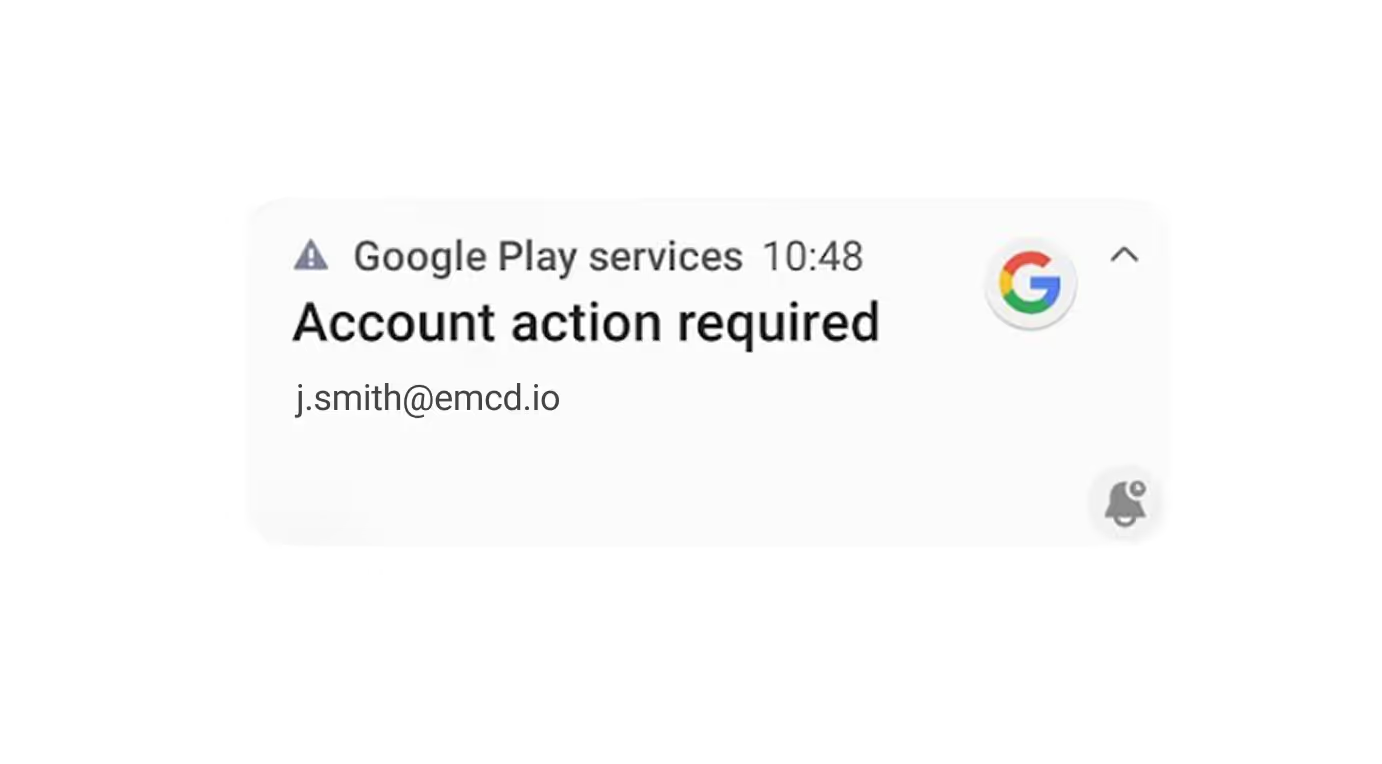
Click the notification to begin the MDM setup process and follow the further prompts to install and configure your work profile.
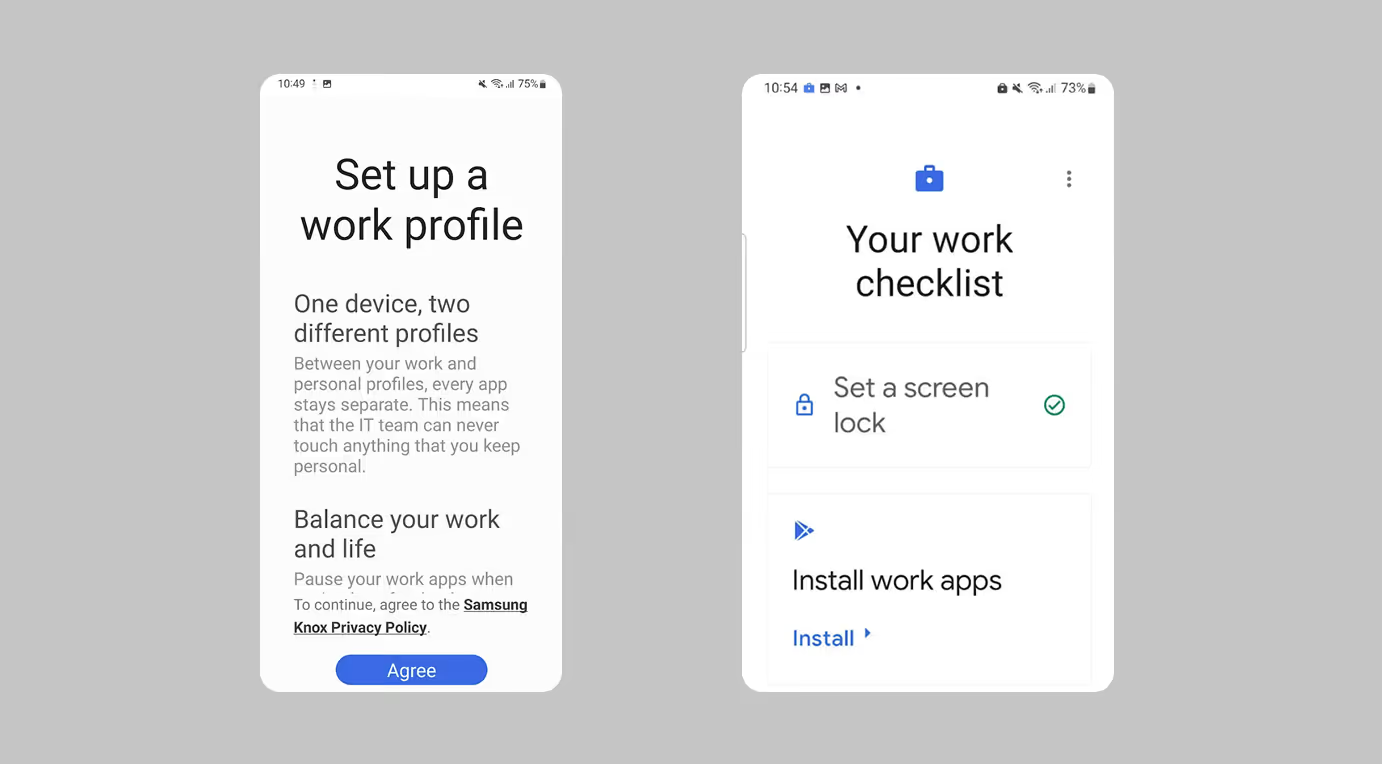
If you do not have a complex PIN of at least 8 digits, you must set one.
Click Install to install corporate applications to your work profile.
During setup, a Work profile will be created on the device, in which all work applications will appear (installation of all applications may take up to 30 minutes on slow internet), the icons of all work applications in the work profile are marked with a lock:
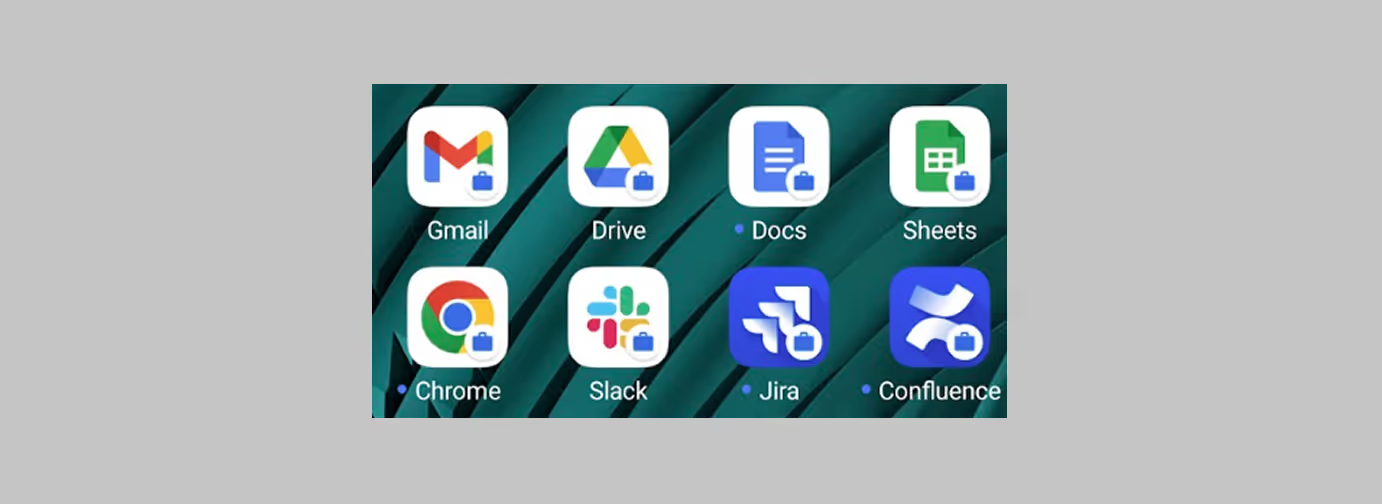
The work profile is an isolated area where all corporate data and applications are located, it also has a separate Play Store for installing applications. Transferring data from the work area to the personal area is prohibited. For all work profile applications, use authorization through the work account @emcd.io.
If you are prompted to install the Google Device Policy app when signing in to Google apps (GMail, Calendar, Google Disk, etc.), install it using the link provided.
Next, you need to sign in to your corporate account using the Sign In button and confirm the Terms of Service by clicking the Accept button.
Download the profile by clicking on the arrow button in the blue circle.
Then the profile will start downloading, this action must also be confirmed by clicking Allow. If the profile is downloaded correctly, the message Profile Downloaded will appear.
Go to the general "Settings" of your phone.
- In the General section, scroll down to VPN & Device Management.
- The Downloaded Profile line will display the downloaded profile named “Google Workspace device policy“
- Click on this profile and press the Install button.
- Enter your device password and click Done and follow the installation instructions.
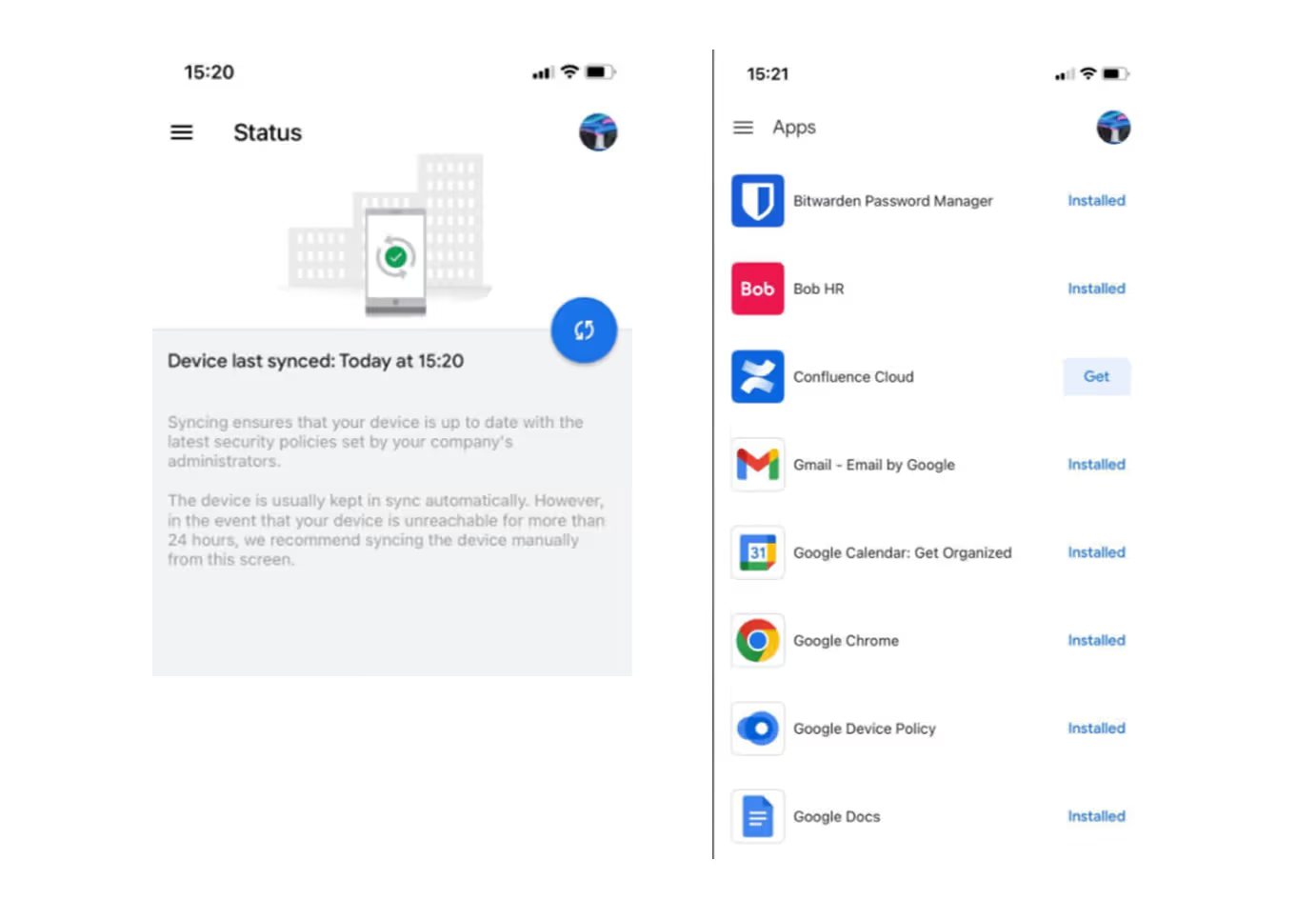
Login to the Google Device Policy app
- The Status section should display information about the time of the last synchronization.
- The Apps section displays corporate applications that are available for installation via the Get button and use with corporate data.
First time registration on the device of the @emcd.io work account and creation of the work profile
To add an additional Google account on your Android phone, follow these steps. The process is pretty much the same for most Android versions and phone models.
- Open “Settings”.It's usually a gear icon (⚙️) on your home screen or in your app drawer.
- Scroll down and find the “Accounts” or “Users & accounts” or “Additional Settings” section and then “Accounts” .Depending on your Android version or phone manufacturer, this section may have a slightly different name, but it usually has the word "Accounts" in it.
- Tap “Add account”If you already have multiple accounts, you'll see a list of them, with this option at the bottom or top.
- Select "Google" from the list of account types.A list of different services will appear (Google, Exchange, Personal (IMAP), Personal (POP3), etc.). Select "Google".
- Enter your EMCD Google credentials.
- The Google sign-in screen will appear.
- Enter your @emcd.io email address.
- Press "Next”.
- Enter password.
- Press “Next”.
- Accept the terms (if required).If this is a new account or you are signing in with it for the first time on this device, you may be asked to accept the terms of service or privacy policy. Scroll down and click "I agree".
- Enter two-step verification code (if enabled).Once you have successfully signed in, the account will be added to your phone. You will be able to see it in the "Accounts" list.What will happen after the account is added:A notification will appear on the device about the need to install Android Device Policy. Access to mail is not possible until Android Device Policy is installed and configured. During setup, a Work profile will be created on the device, in which all work applications will appear (installation of all applications may take up to 30 minutes).The Work profile is an isolated zone in which all corporate data and applications are located, it also has a separate Play Store for installing applications. Transferring data from the Work zone to the personal one is prohibited. For all work profile applications, use authorization through the work account @emcd.io.
To add an additional Google account on an iOS phone, follow these steps. The process is almost identical for most iOS versions and phone models.
Important: If you are prompted to install the Google Device Policy app when signing in to Google apps (GMail, Calendar, Google Disk, etc.), install it from the link provided.
- Open the App Store app.In search bar enter: Google Device Policy and download it.
- In the opened window scroll to the Continue button and click it.Allow Google Device Policy to send notifications.
- Next, you need to sign in to your corporate account via the Sign In button and confirm the Terms of Service by clicking the Accept button
- Download the profile by clicking the arrow button in the blue circle.
- In the opened window scroll to the Continue button and click it.Then the profile will start downloading, this action must also be confirmed by clicking Allow. If the profile has been downloaded correctly, the Profile Downloaded message will appear.
- Go to the general "Settings" of the phone.
- In the General section, scroll to the VPN & Device Management item.
- The Downloaded Profile line will display the downloaded profile named “Google Workspace device policy“
- Click this profile and click the Install button.
- Enter the password for your device and click the Done button and follow the installation instructions.
- Open Google Device Policy applicationOpen Google Device Policy application
- The Status section should display information about the time of the last synchronization.
- The Apps section displays corporate applications available for installation via the Get button and use with corporate data.
Check that Google Chrome is among the installed corporate applications. If it is not, install it manually from the Play Store.
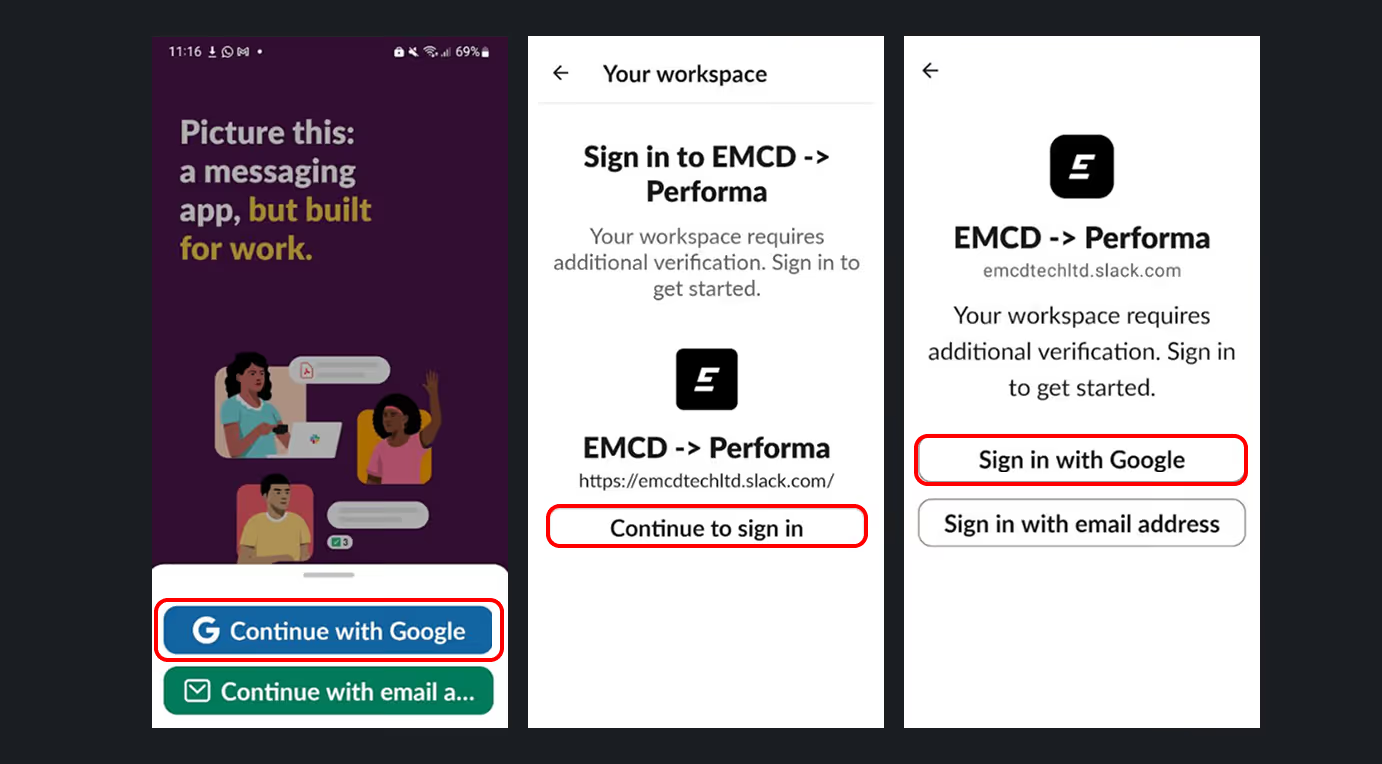
Using Slack
Please remove the Slack app from your personal profile and use it only in your work profile. When you first launch it, select Continue with Google.
Enter two-step verification code (if enabled).
Google Authenticator has stopped working
If you were using Google Authenticator under the @emcd.io account, please install Google Authenticator from the Play Store in your work profile, all your keys will be available again.
Some apps were not installed automatically
You can install apps manually from the Play Store in your work profile.
The work app I need is not available in the Play Store in my work profile
Please contact Slack channel #it-operations.
The device does not sync
For iOS, a situation is possible when the device does not sync in the Google Device Policy application. This may happen due to previously installed applications from the AppStore. In this case, you need to delete the applications and then install them yourself from the Google Device Policy application.
How do I remove MDM from a device?
Settings -> Additional Settings -> Accounts & Sync -> Remove work profile
- Find the MDM Profile in Settings
- Open Settings.
- Tap General.
- Scroll down and tap VPN & Device Management. It may also appear as Device Management or Profiles & Device Management.
- Remove the Management Profile
- In the Mobile Device Management section, there should be a profile named "Google Apps Device Policy Payload Profile" or EMCD. Tap it.
- Tap Remove Management.
- Enter the device passcode if required.
- On the confirmation screen, tap Remove Management again.
Questions & Answers:
What apps are automatically installed in the work profile?
The following apps are automatically installed:
Gmail, Chrome, Google Drive, Calendar, Meet, Sheets, Docs, Slides, Slack, Jira, Confluence, BitWarden, Miro, HiBob.
Additional apps are available for self-installation from the Play Store in the work profile.
Do EMCD administrators have access to my personal data?
EMCD administrators only have access to general information about the mobile device (model, serial number, OS version, applications installed in Work profile). No one has access to personal apps and data (outside the work profile). Information available to administrators from managed devices.
EMCD administrators DO NOT have access to:
1. Personal apps on your device and data within personal apps (e.g. contacts, emails, messages)
2. Browsing or call history
3. Device geolocation
4. Mobile or Wi-Fi network connections
Sample information collected by MDM about device
Can I remove apps in the work profile?
Yes, you can remove unnecessary apps yourself (except for Gmail and Chrome).
We are here to help
If you run into any difficulties while setting up your MDM profile, please contact our Security Manager. He will help you resolve the issue or point you to the right person.
