Slack account registration
Select language
01
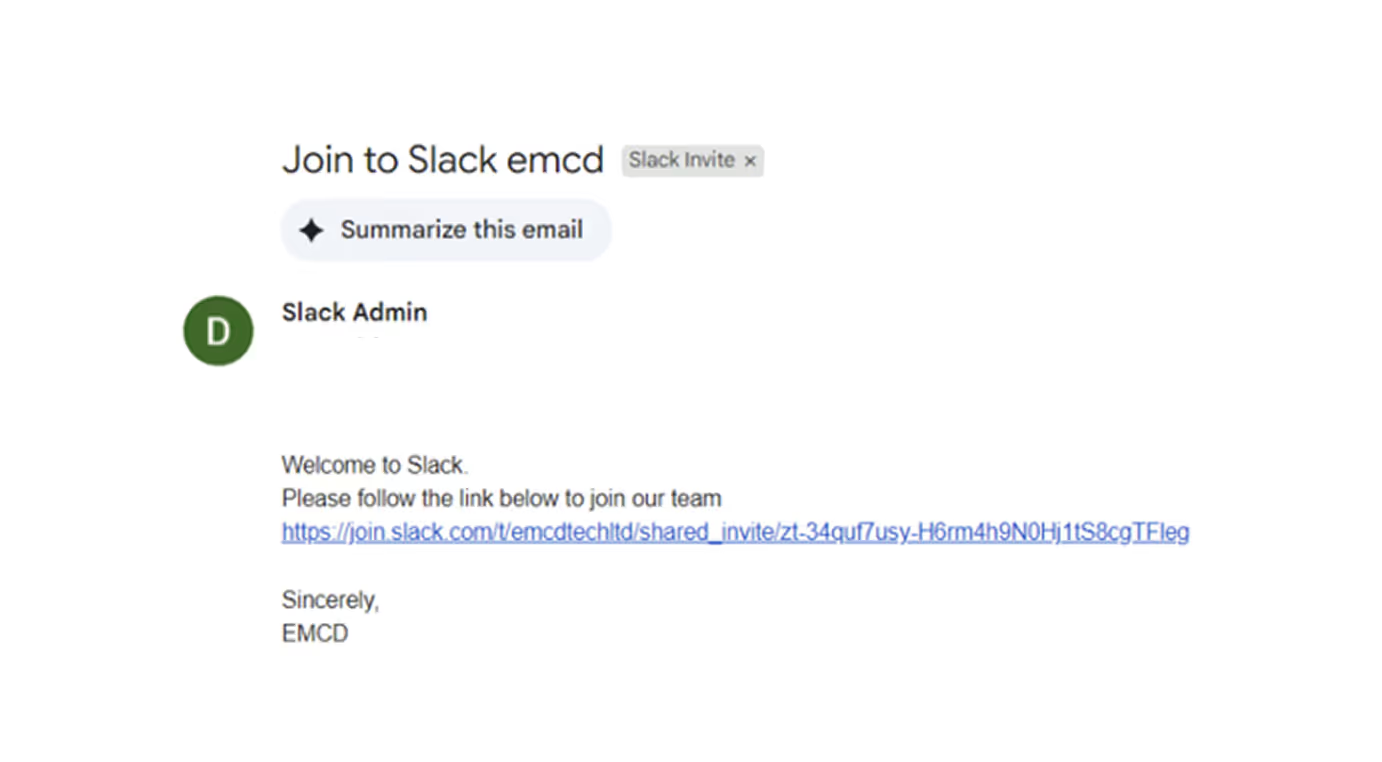
Check your corporate email for an invitation to Slack
02
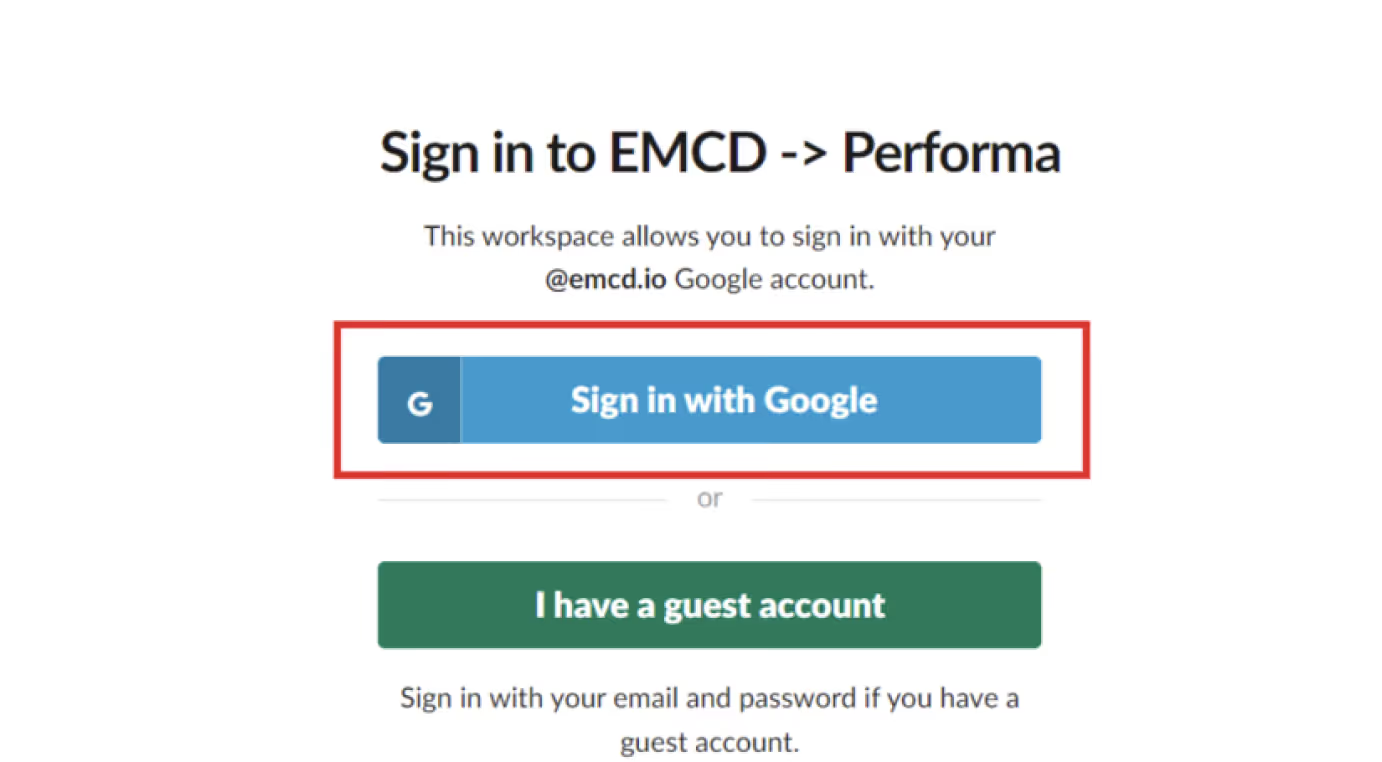
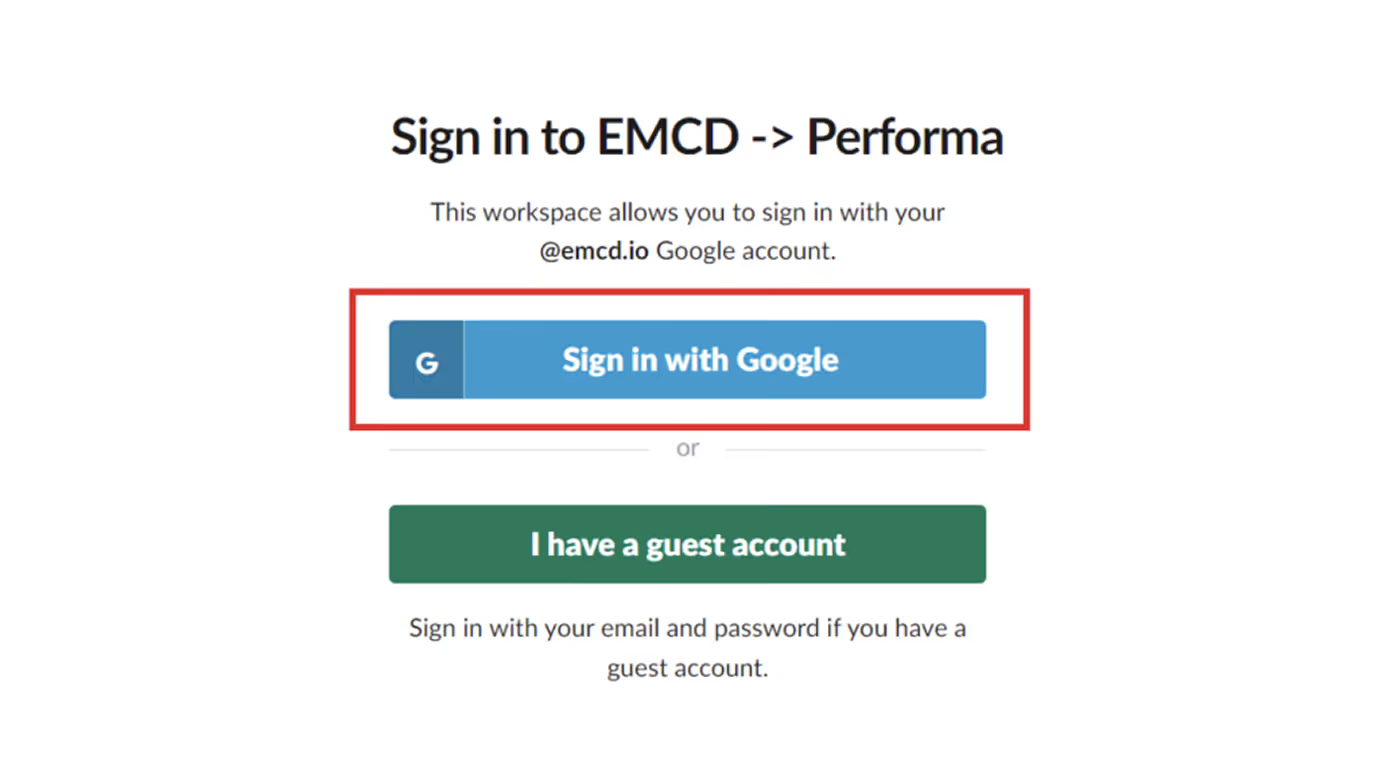
Follow the link in the email and choose “Sign in with Google”
03
Sign in to your Google account using your Google login and password
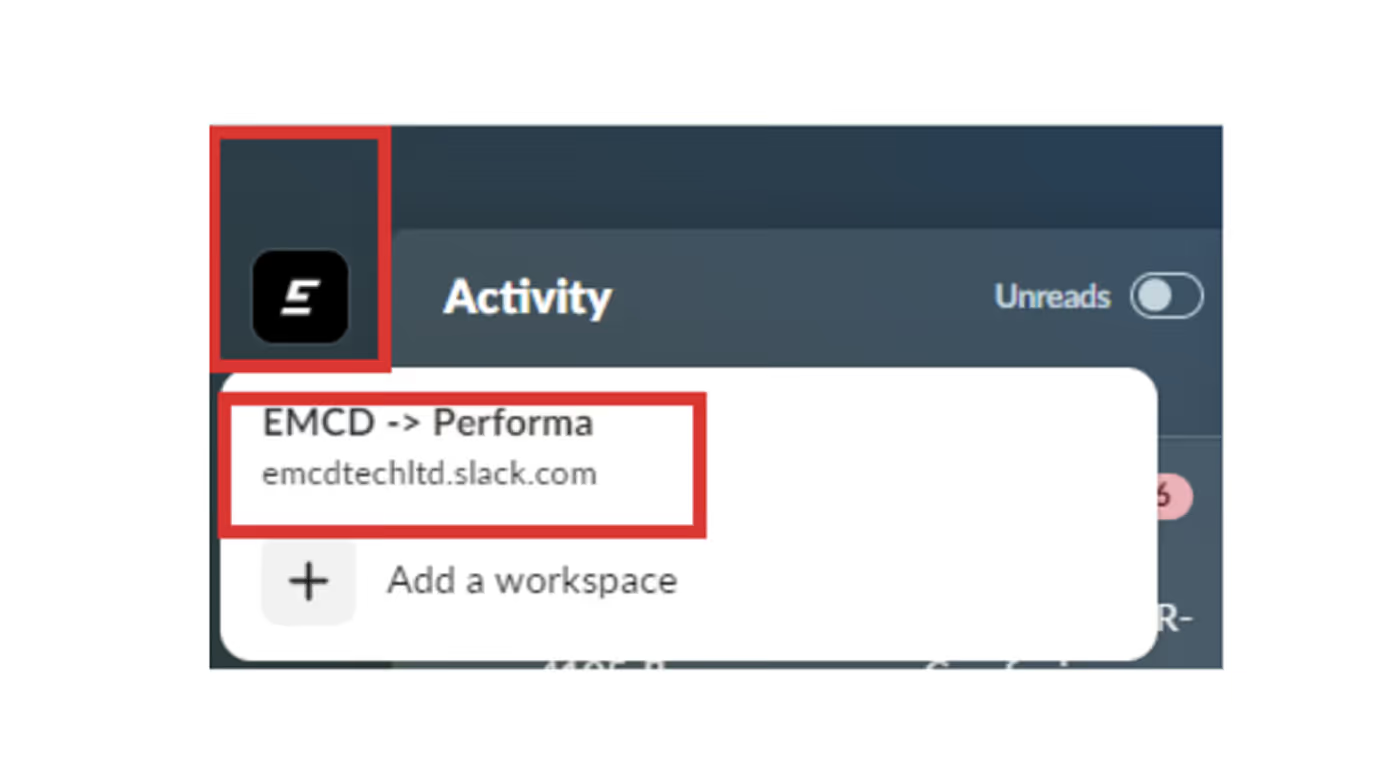
Once you’re logged in, you’ll be taken to the company Slack workspace, where you should see the EMCD logo in the top left corner and the correct workspace URL (the URL appears when you click the EMCD logo).
What should you do if the invite email didn’t arrive or the EMCD workspace didn’t open automatically?
01
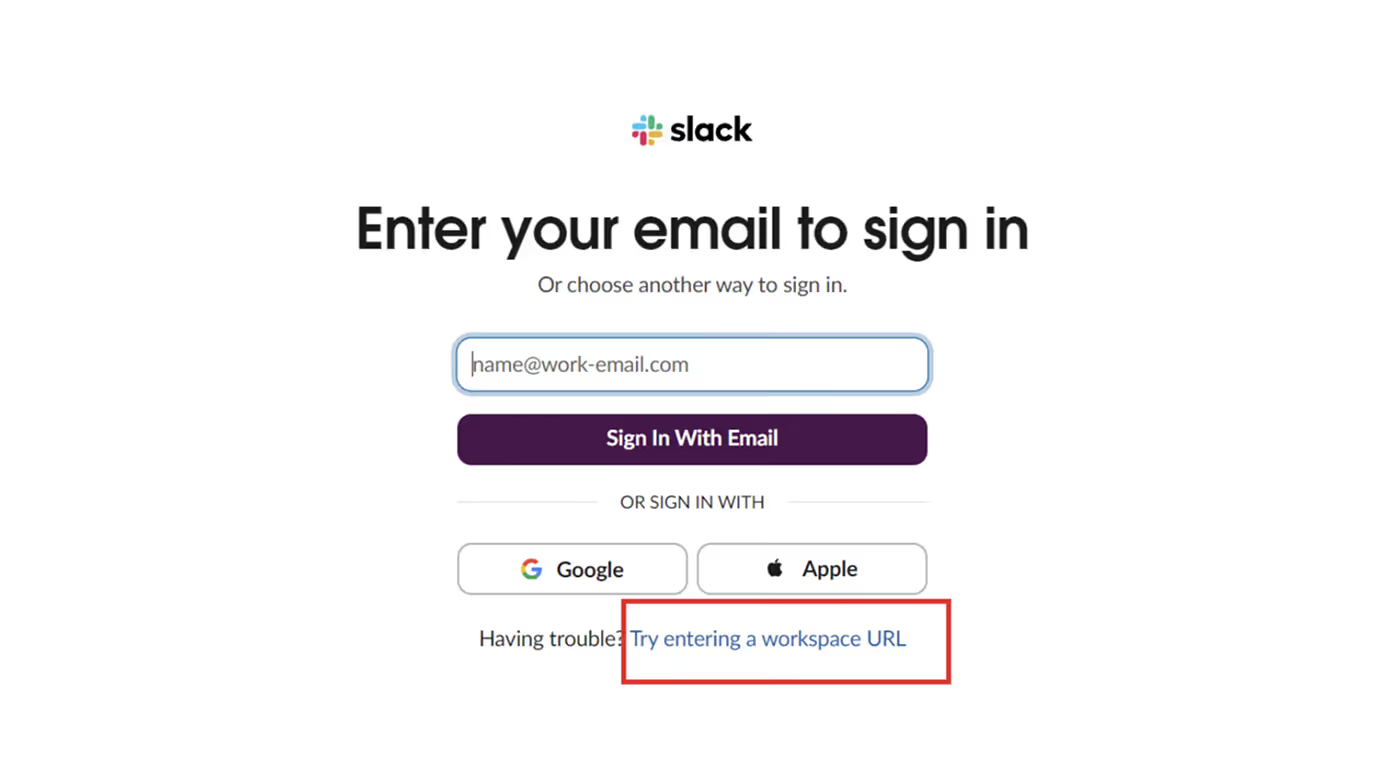
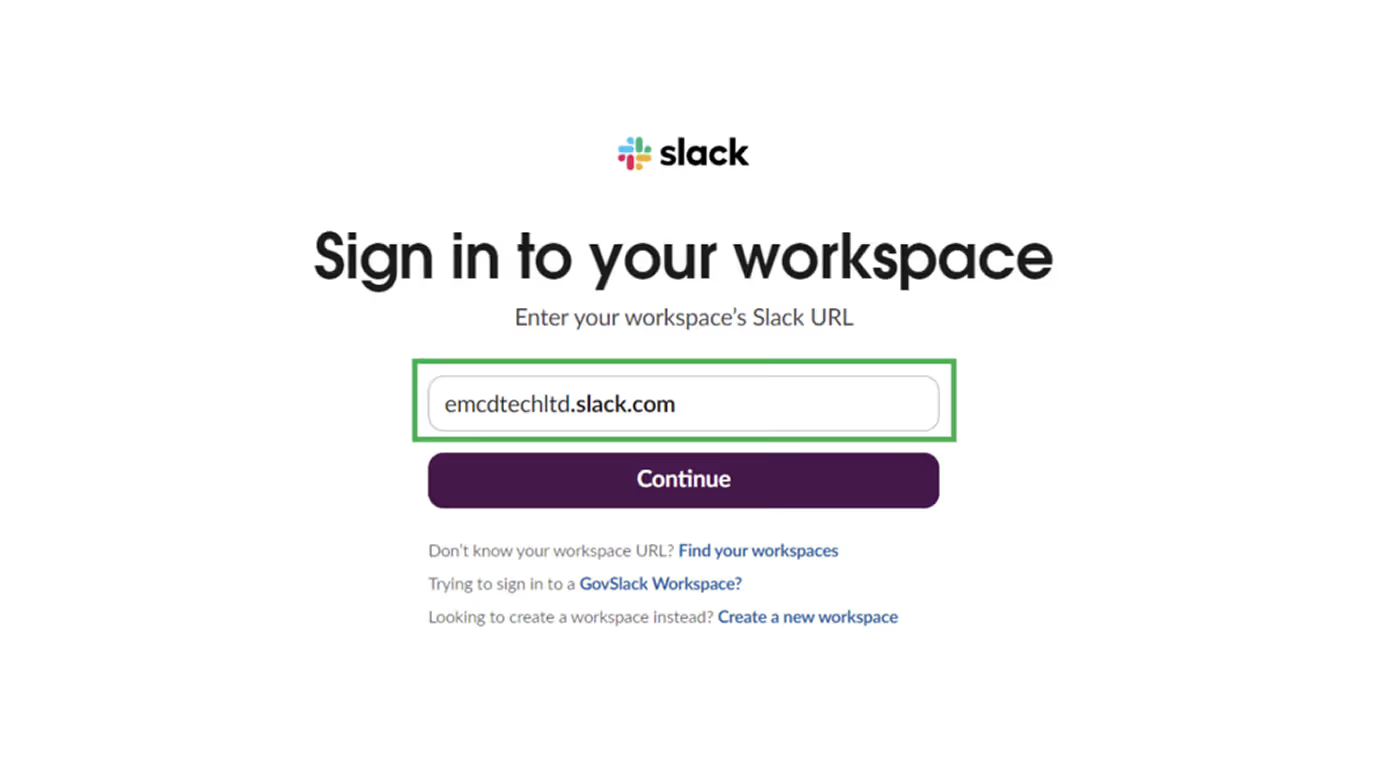
If for some reason you get an error or the invite email didn’t arrive in your corporate inbox, go to app.slack.com - you’ll be redirected to the login page
02
Click “Try entering a workspace URL” and enter the company workspace address: emcdtechltd.slack.com
03
You should then see a login options window - choose “Sign in with Google”
We are here to help
If you run into any difficulties while setting up your Slack profile, please contact our Security Manager. He will help you resolve the issue or point you to the right person.

Oleg Komarov
Security Manager