Filling out Slack Profile
Select language
EMCD is an international company, and our team works remotely from different countries and time zones.
That’s why your Slack profile is an important part of our day-to-day communication.
To help colleagues easily find each other and collaborate effectively, your profile must be filled out correctly and in accordance with this guide.
Video-instruction on how to fill out your Slack profile
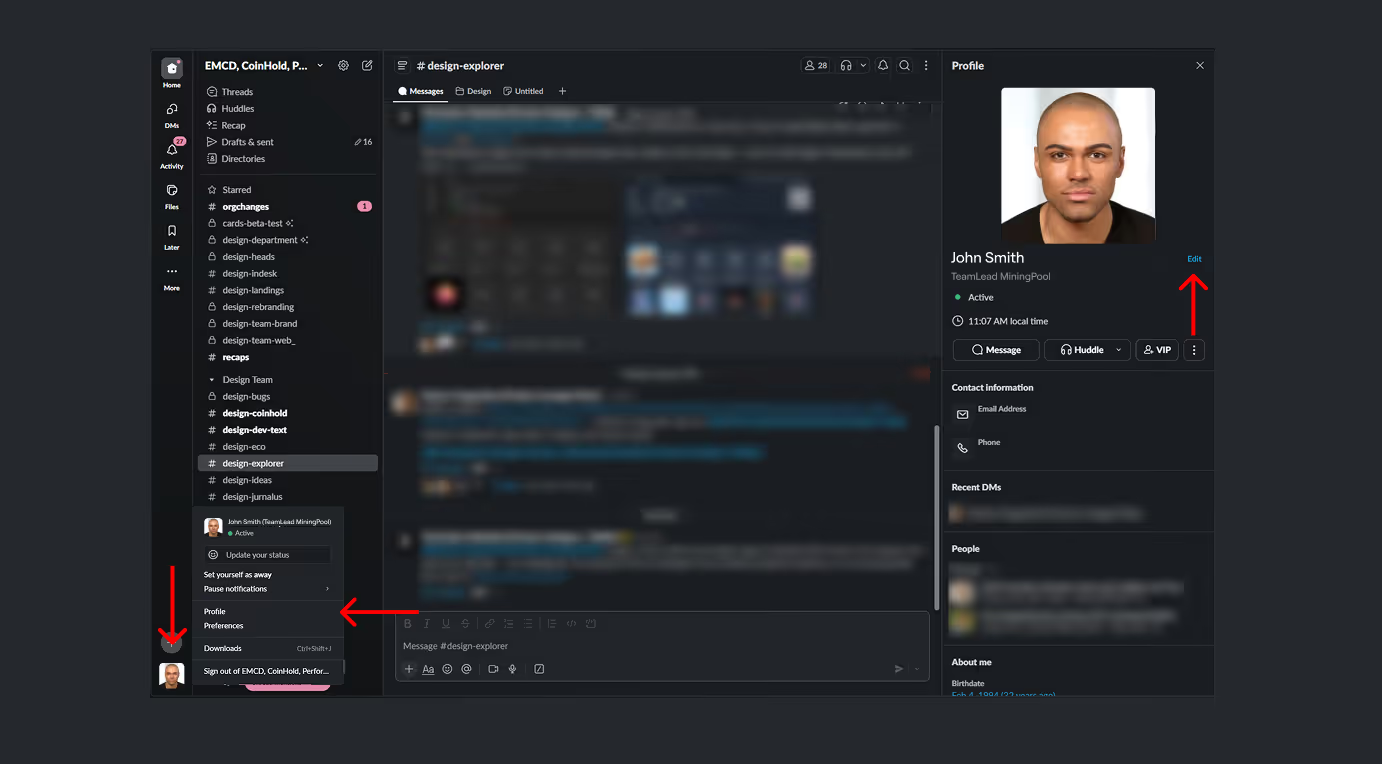
Open your profile
- In the bottom-left corner, click your profile icon.
- Select Profile.
- Then hit Edit under your photo.
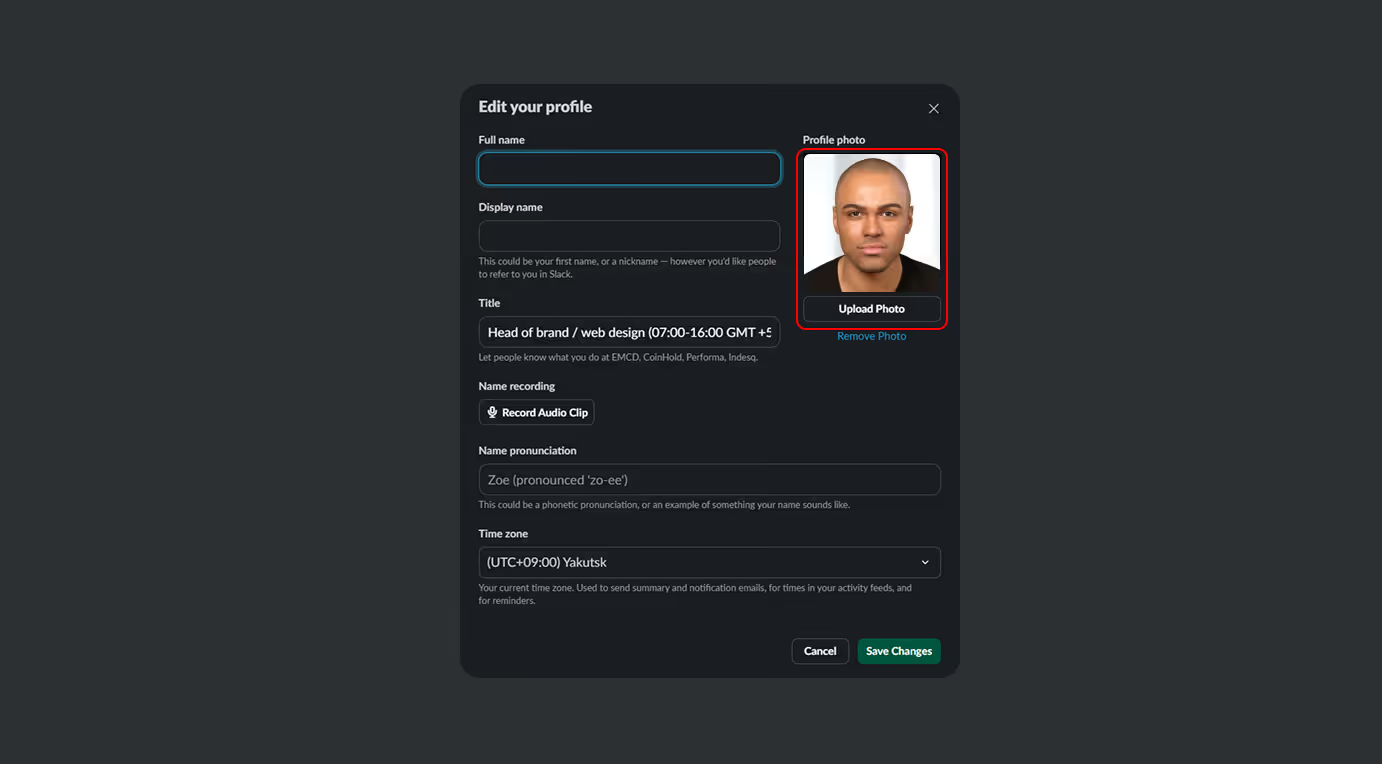
Add your photo
- Use a photo with a light or neutral background, without filters or AI-generated images.
- Your face should be clearly visible in the photo. No sunglasses or other obscuring objects should be present.
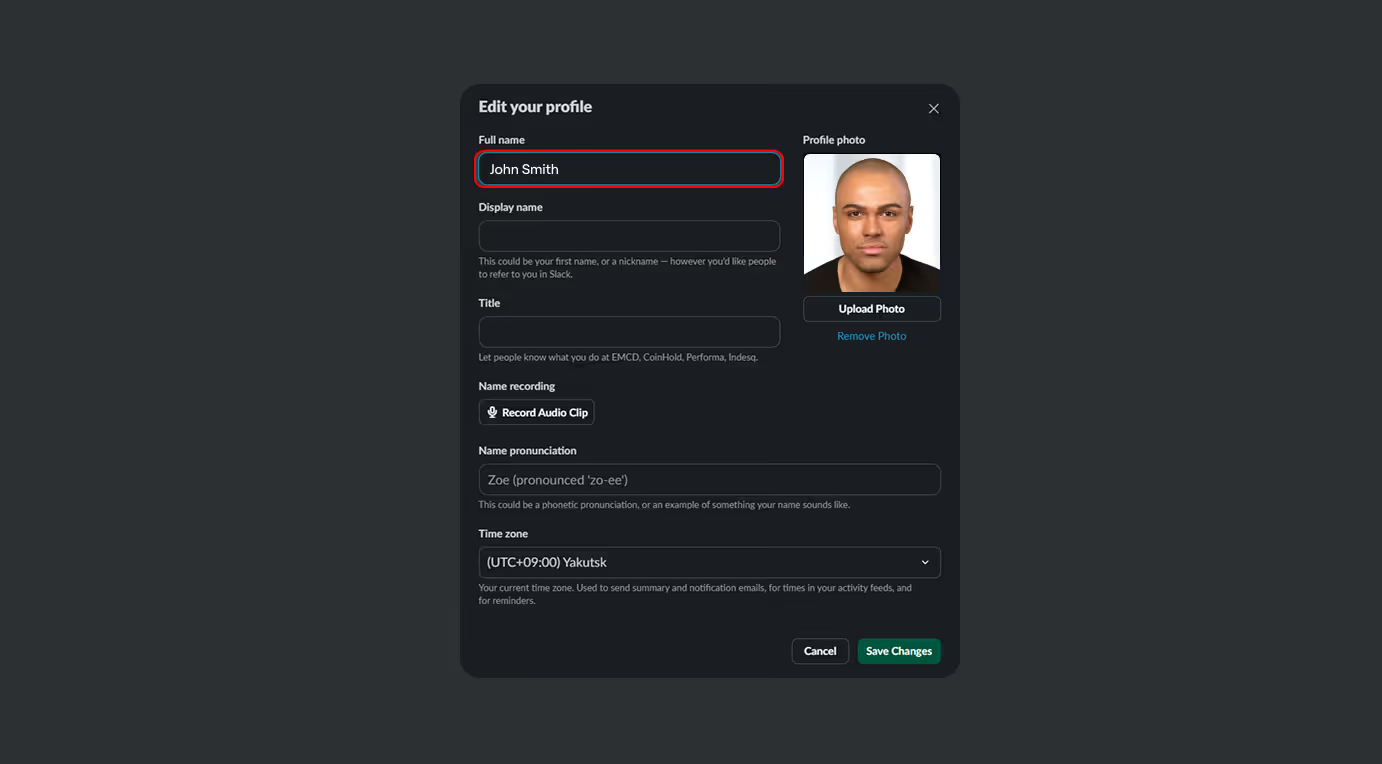
Check Full name field
This field is automatically filled in with data from HiBob; please check that there are no errors in the spelling of your name.
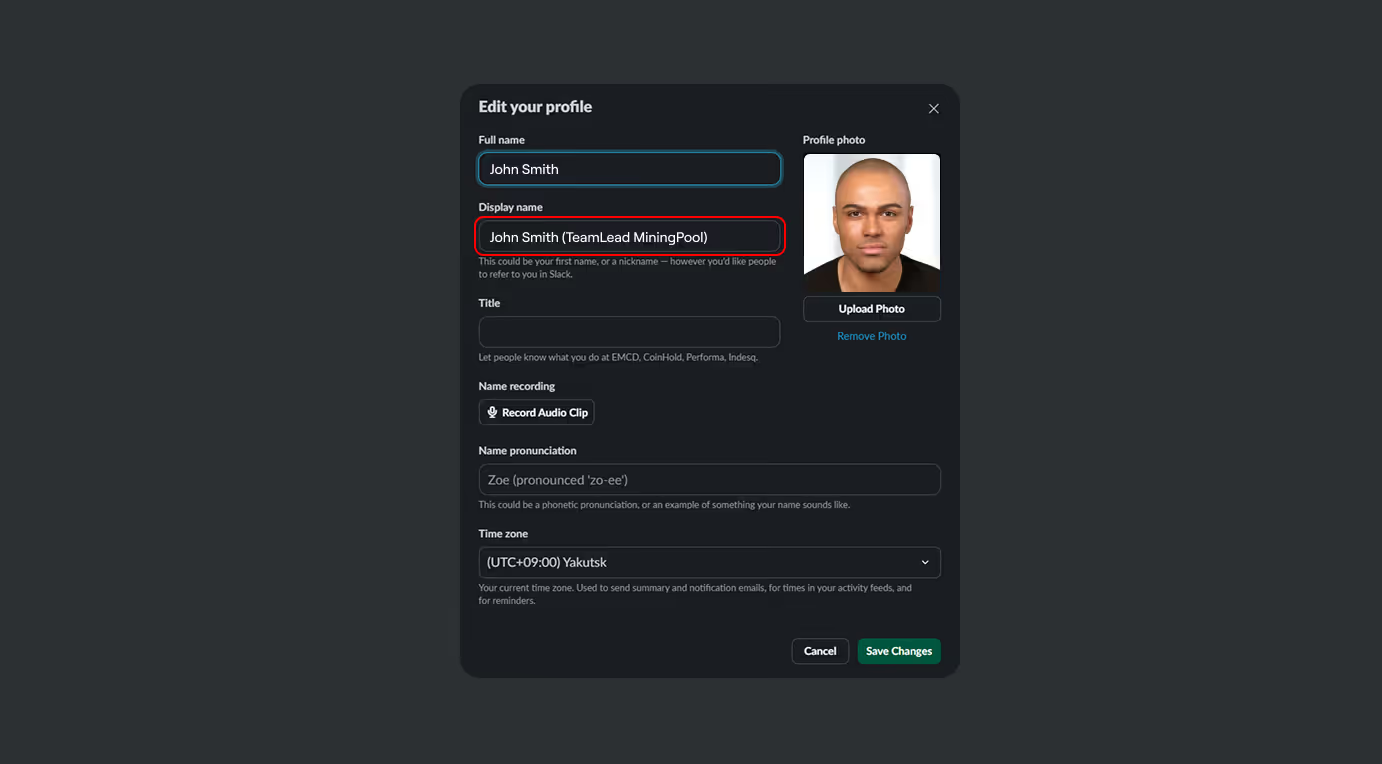
Set your Display name
Enter your first and last name by copying it from the "Full name" field, add your job title and team/product in brackets.
Example:
John Smith (TeamLead MiningPool)
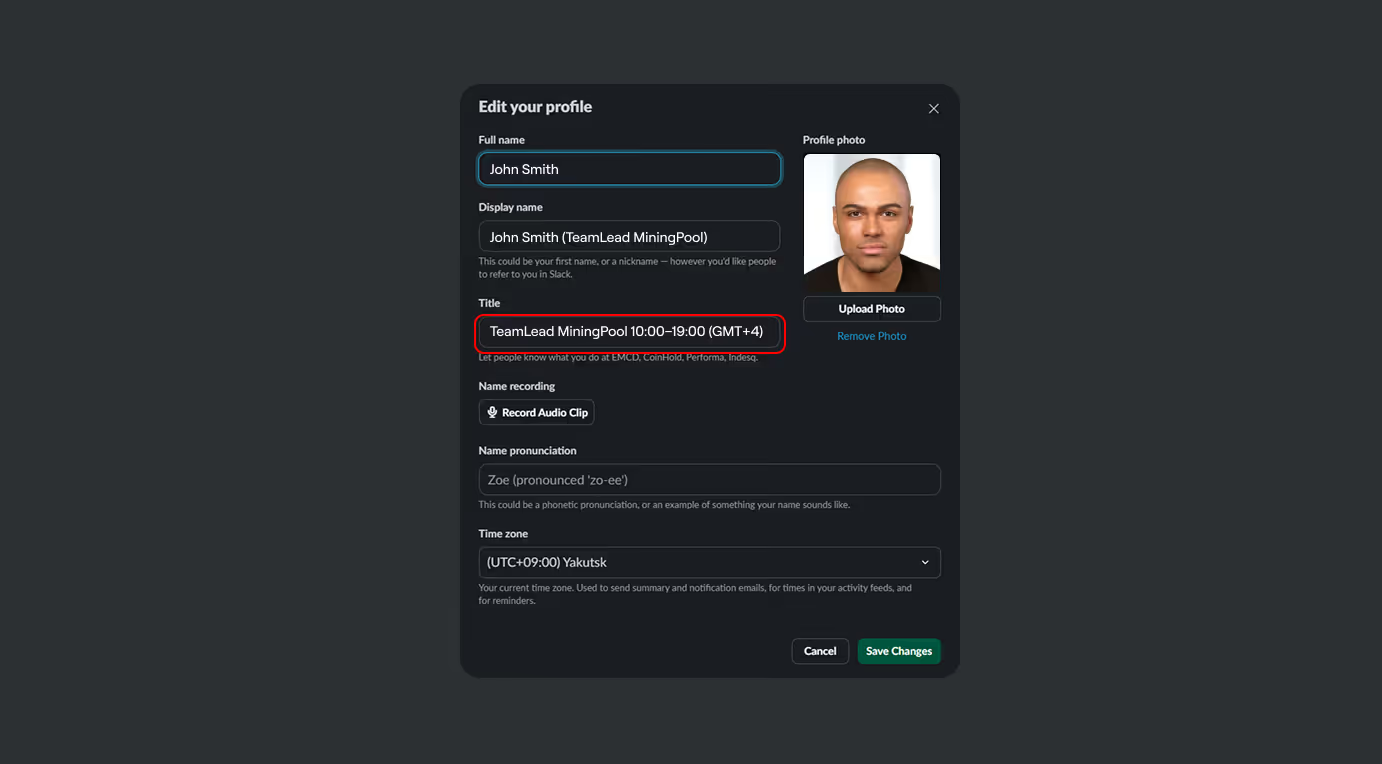
Fill in your Title
Enter your job title and your working hours in the GMT+4 time zone (Dubai).
Example:
TeamLead MiningPool 10:00–19:00 (GMT+4)
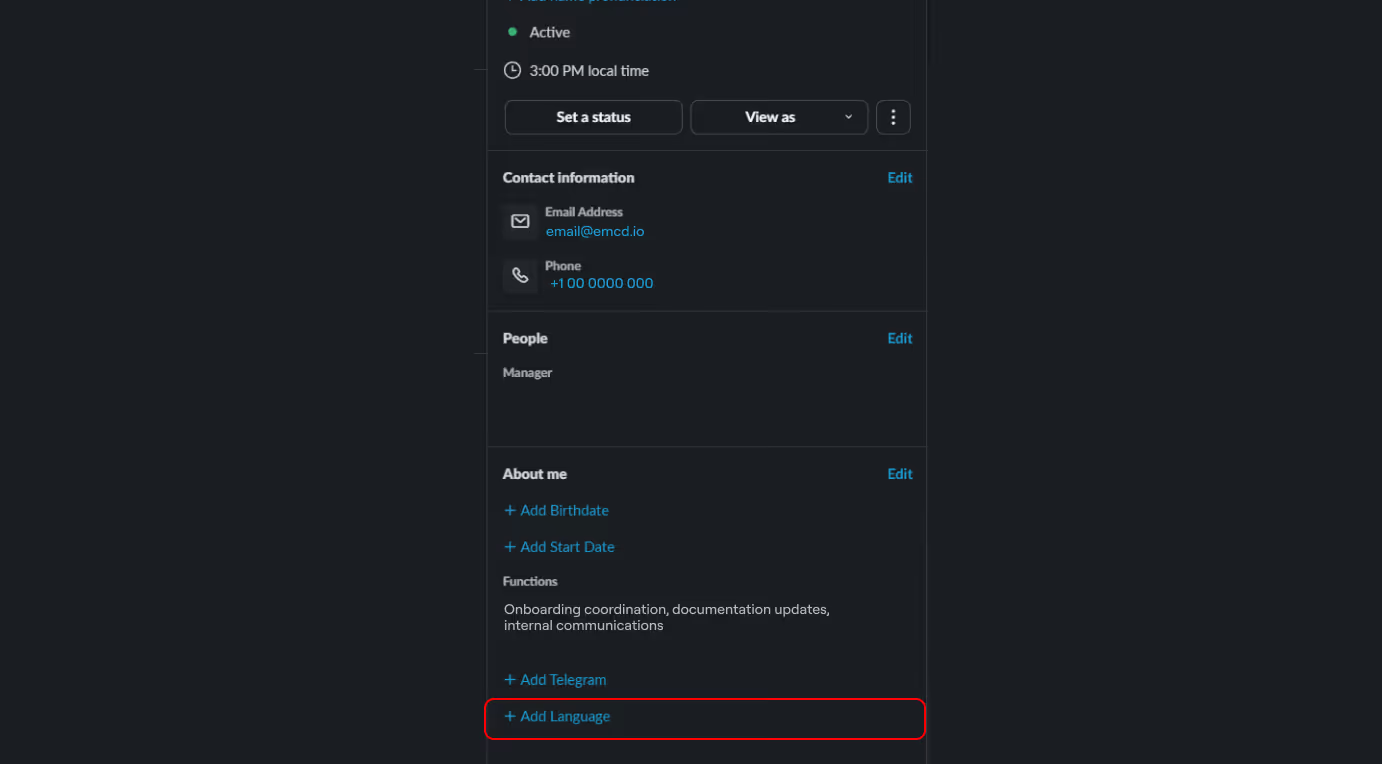
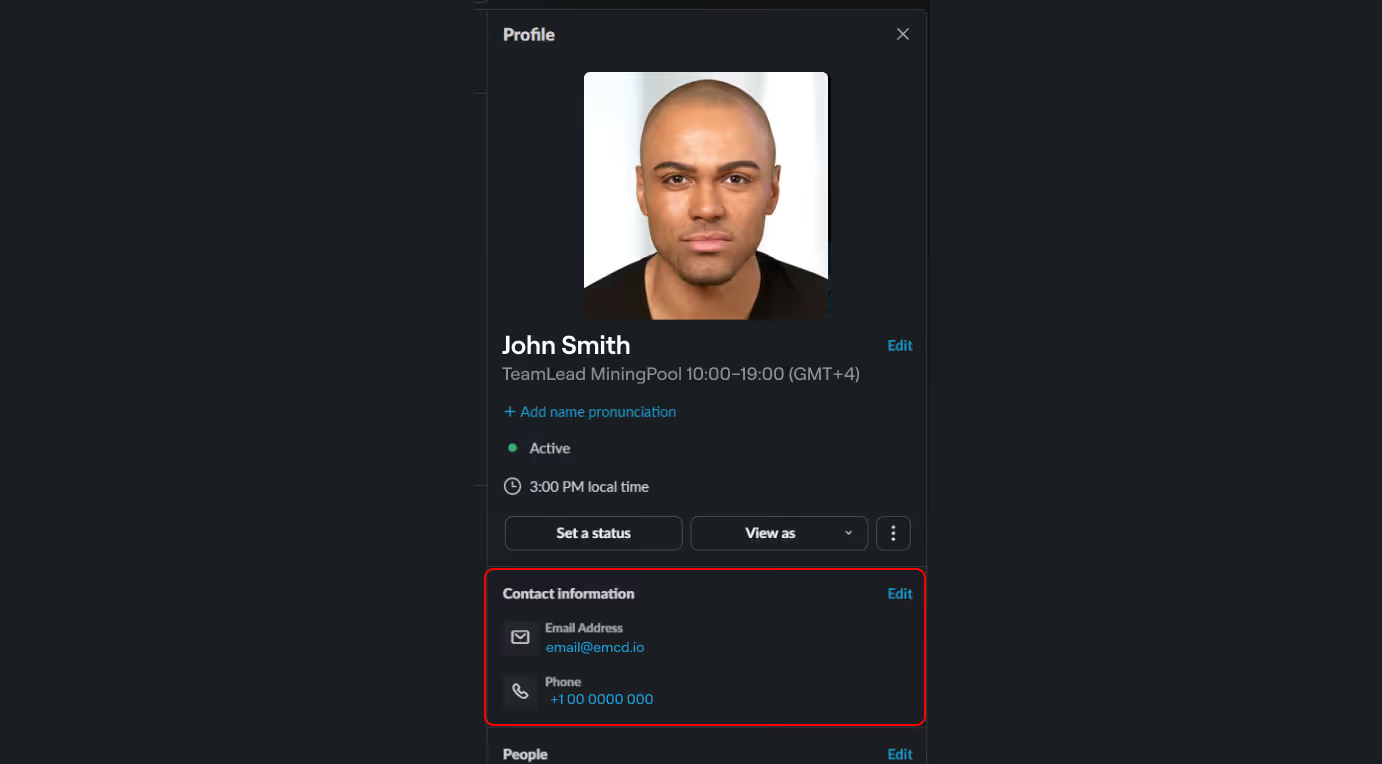
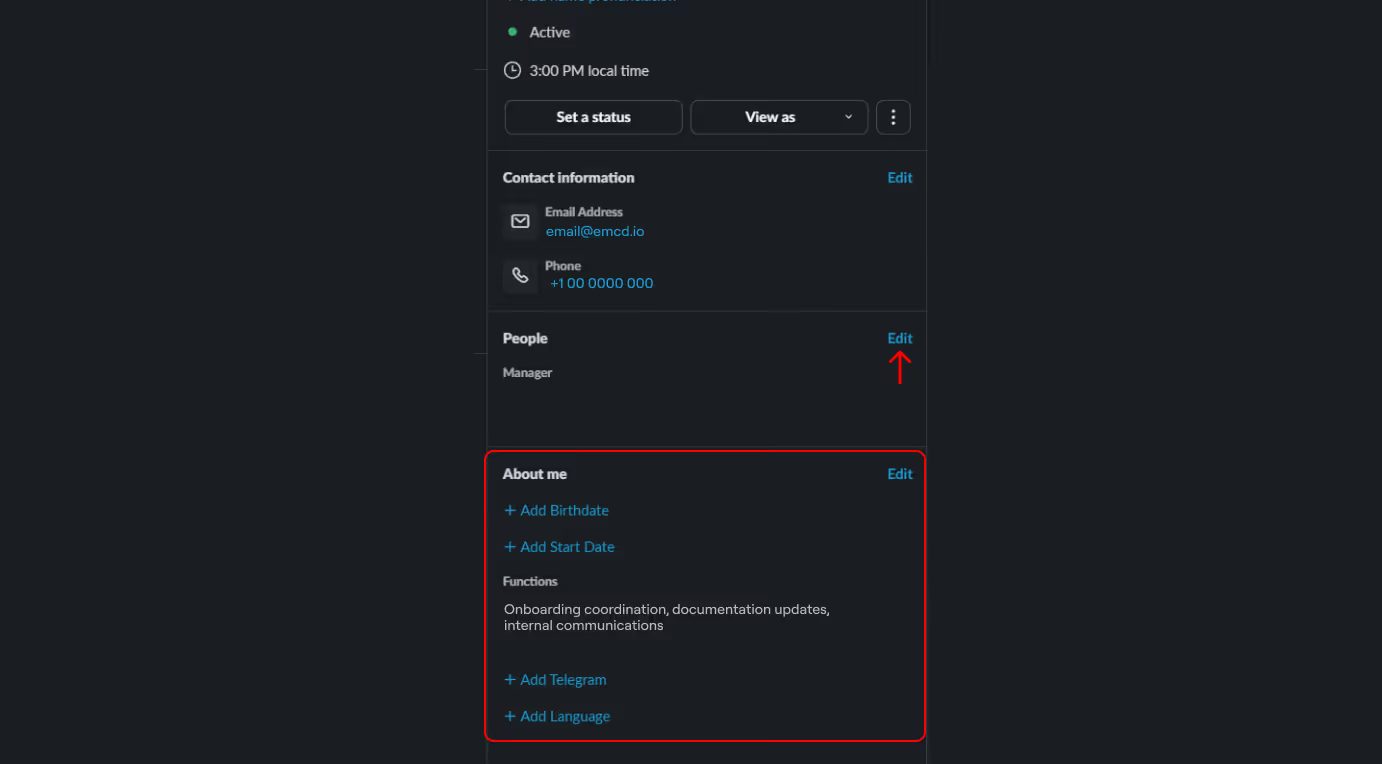
Check the Contact Information section
Your email and phone number usually get filled in automatically.
Just make sure everything is correct.
Start typing your manager’s name and pick the right one from the list
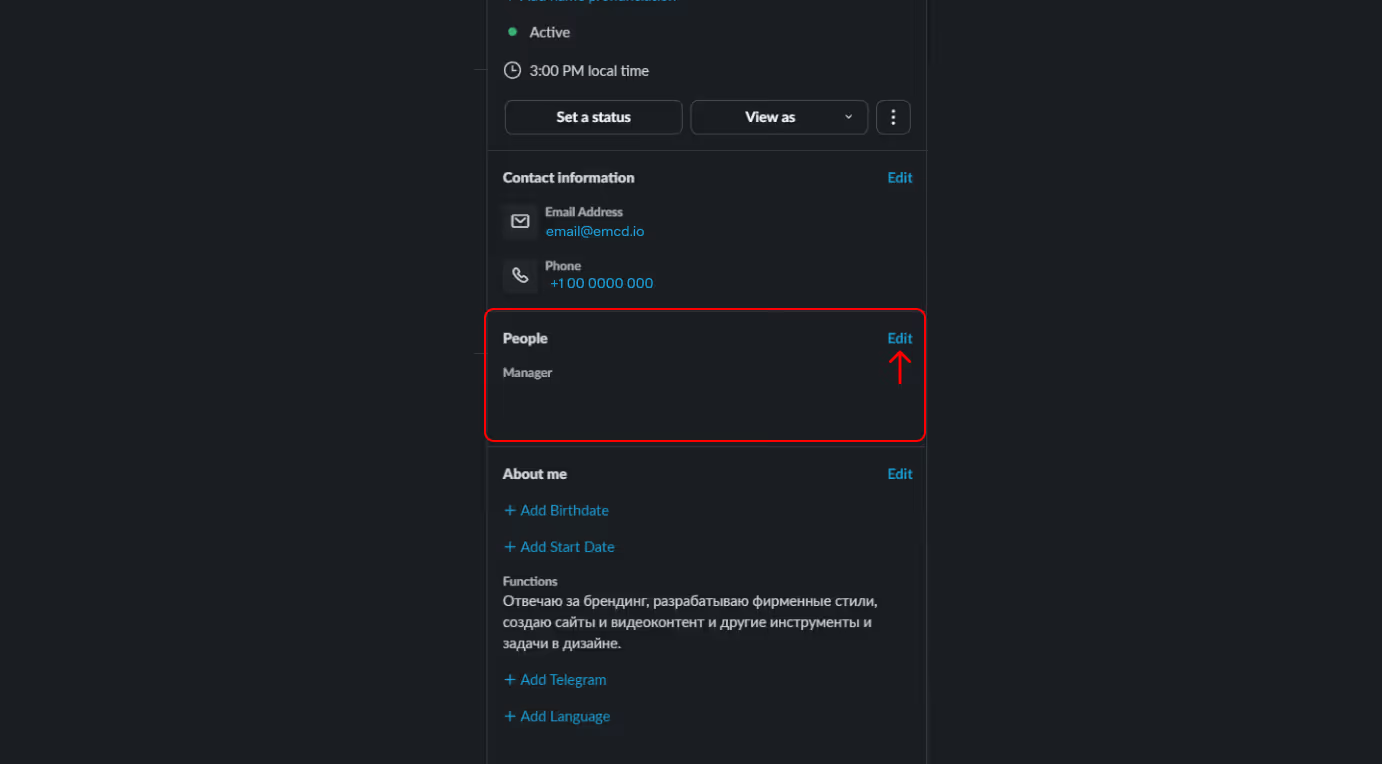
Fill in the Functions section
Briefly describe your main responsibilities.
For example:
- onboarding coordination
- documentation updates
- internal communications
(It’s best to keep it to 1–3 short points.)
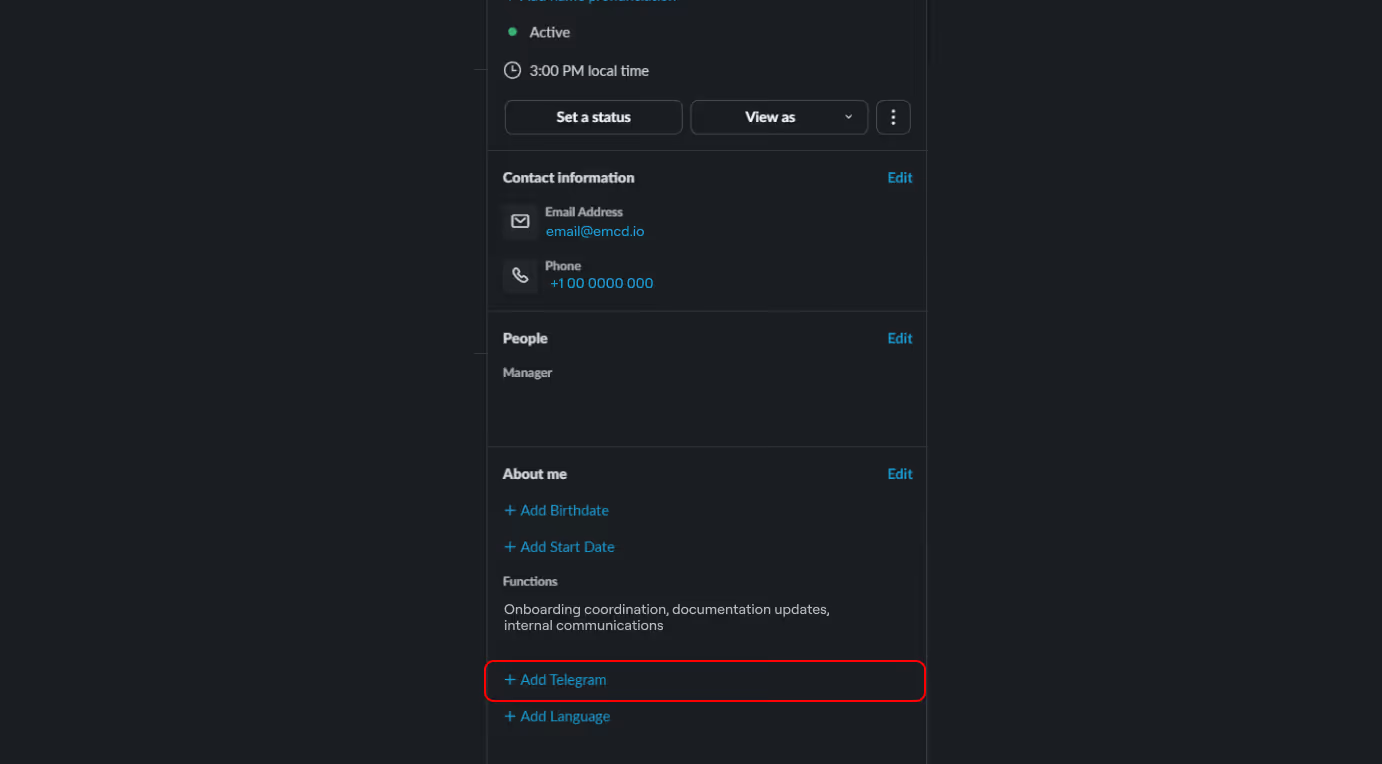
Add your Telegram
Enter your username in the @username format so your teammates can easily find you when needed.
Add your languages, separated by commas
List all the languages you speak. It’s super important in our international team. Start with your native language, and then add all the other languages you speak.
Example: English, Russian.