VPN set up
Select language
01
To set up your VPN, you’ll need to download the HAPP client app. Just choose the version that matches your operating system:
02
After downloading the installation file: Launch the installer.
03
Once the installation is complete, the HAPP app will open automatically and prompt you to add VPN profiles.
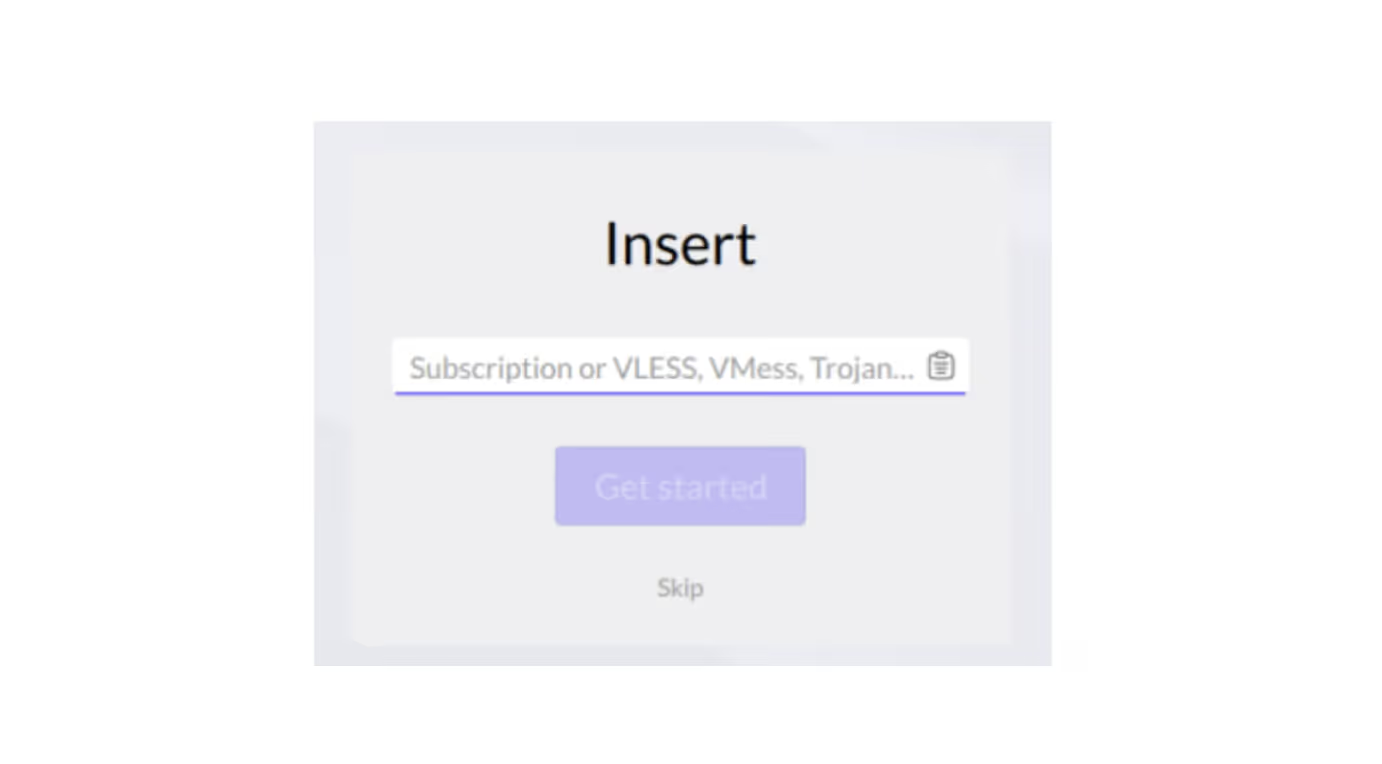
04
To add your VPN profiles, download them from here
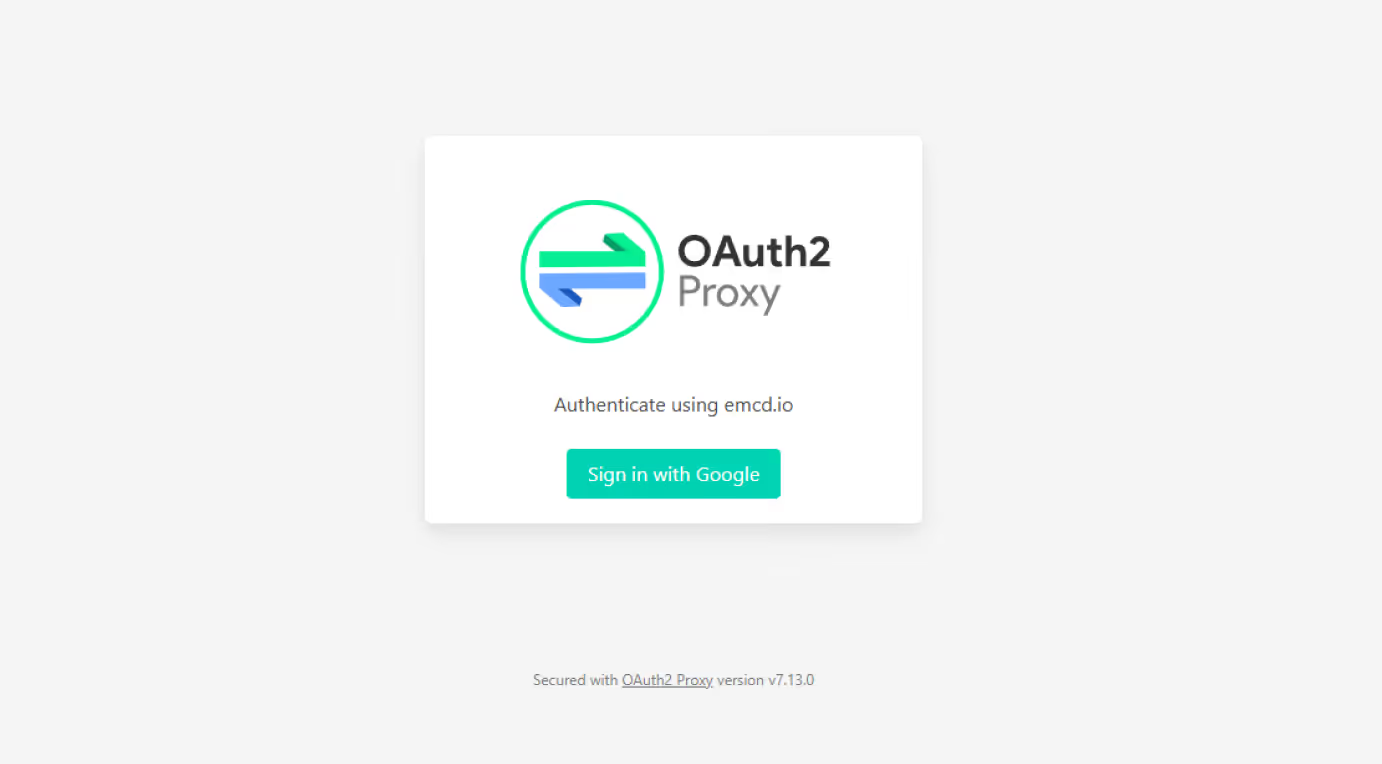
05
After opening the link, sign in with your corporate account by selecting “Login with Google.”

06
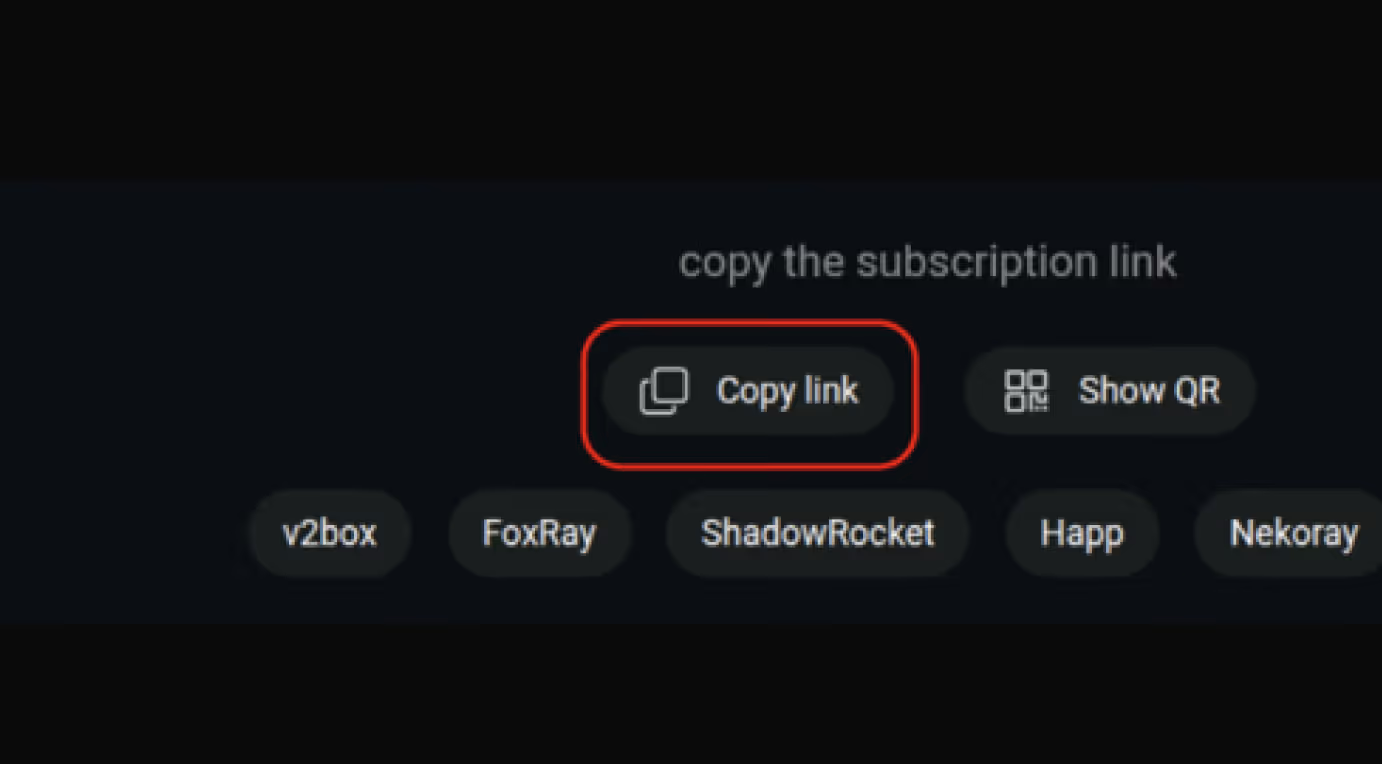
After signing in, you’ll see the “Copy the subscription link” section at the top of the VPN page. Click “Copy Link” to copy the subscription URL
07
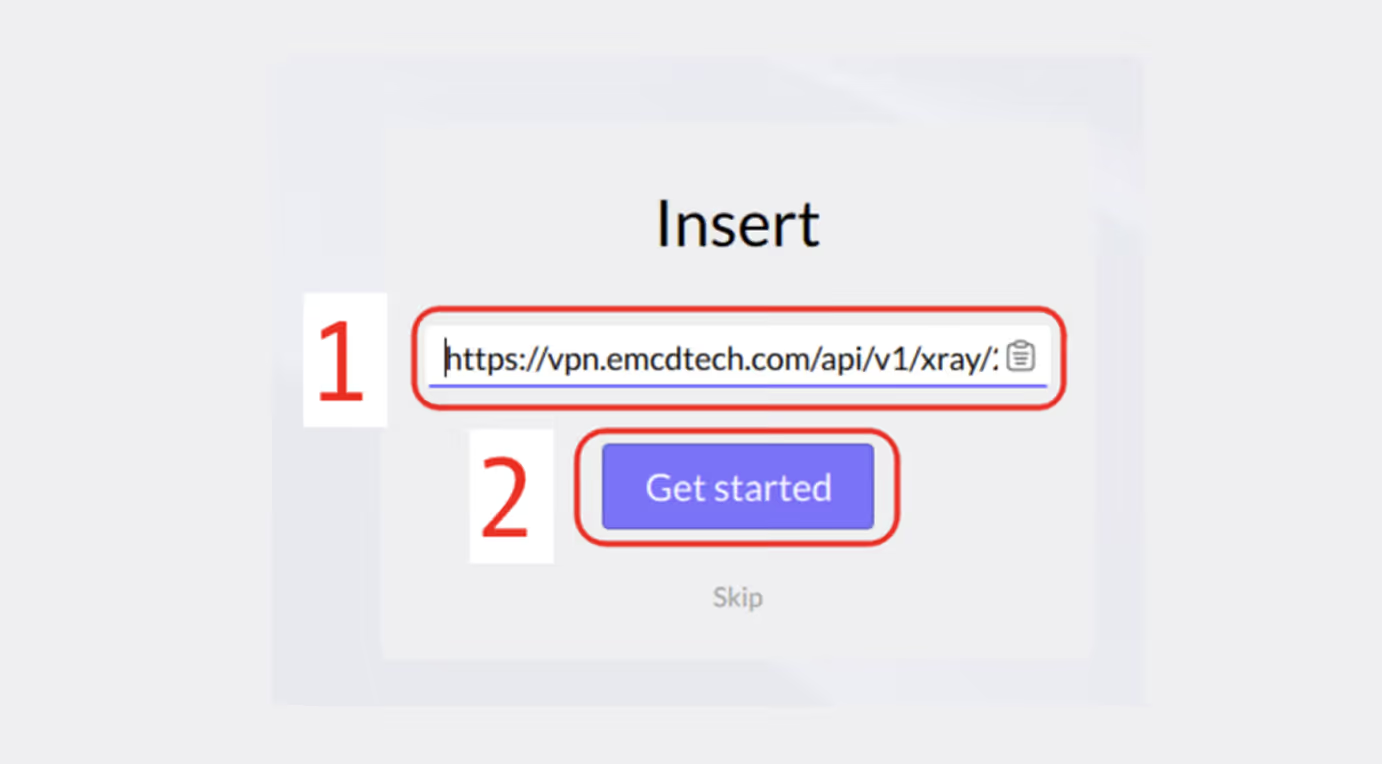
Open HAPP, paste the link you copied into the designated field, and click “Get Started” to load your profiles
08
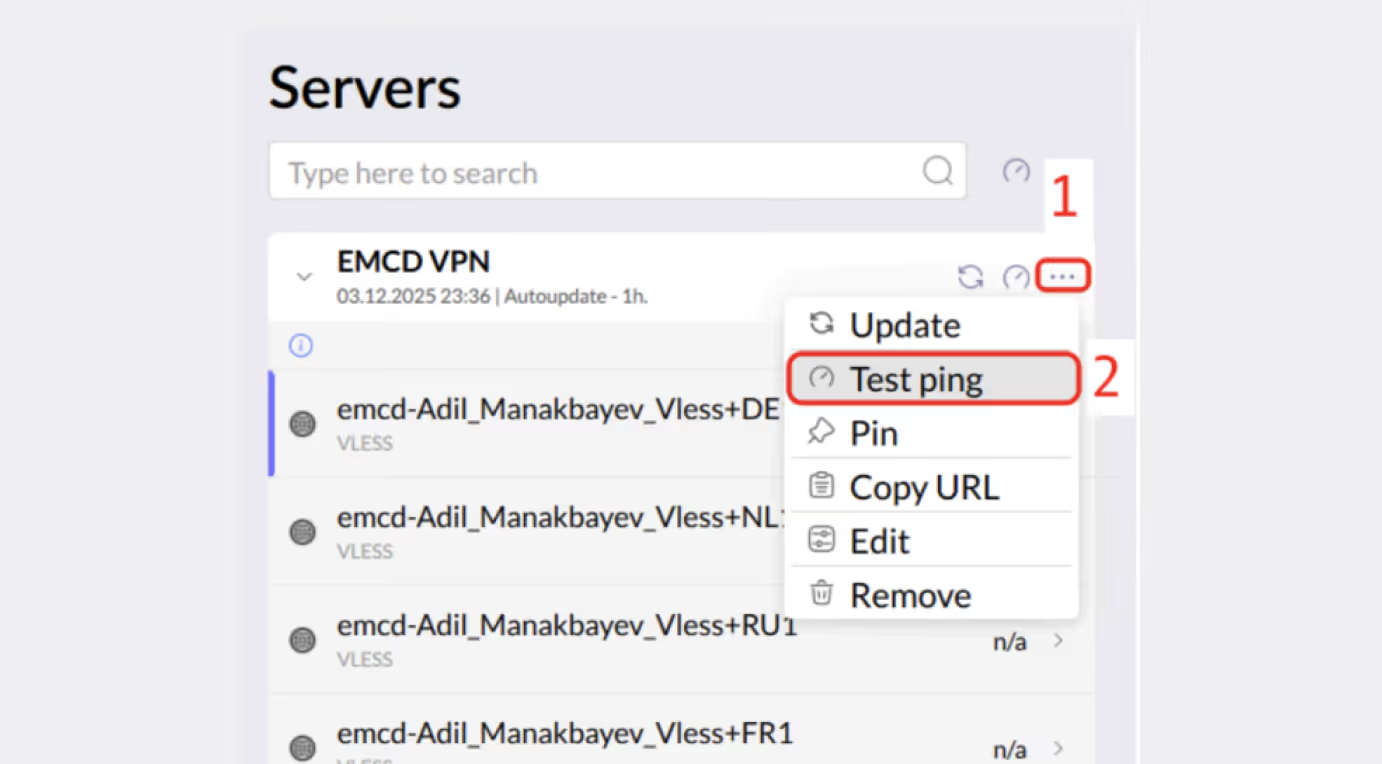
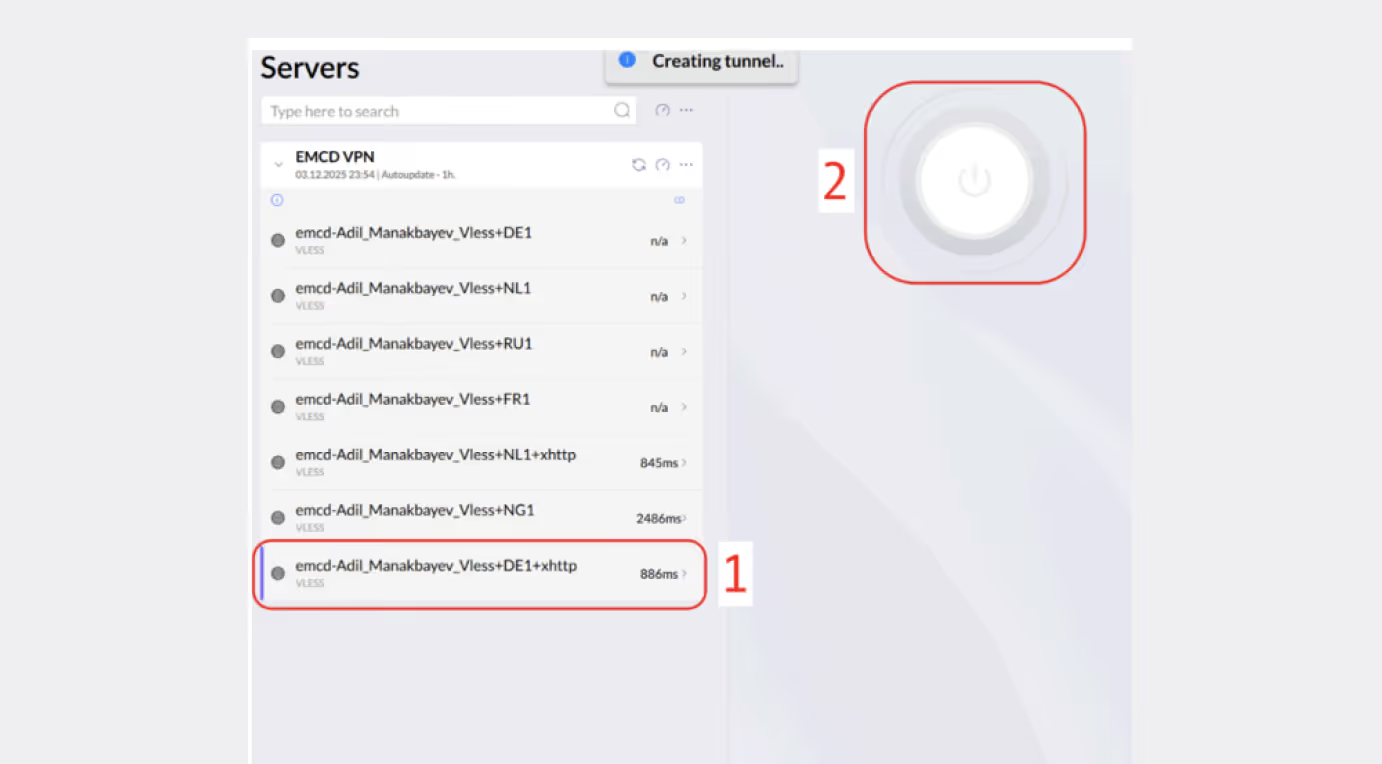
Test a few profiles and choose the one with the lowest ms (latency)
09
Once you’ve selected the right profile, tap the large “On” button to establish the connection
We are here to help
If you run into any issues while setting up the VPN, please contact our DevOps engineer Adil Manakbayev

Adil Manakbayev
DevOps